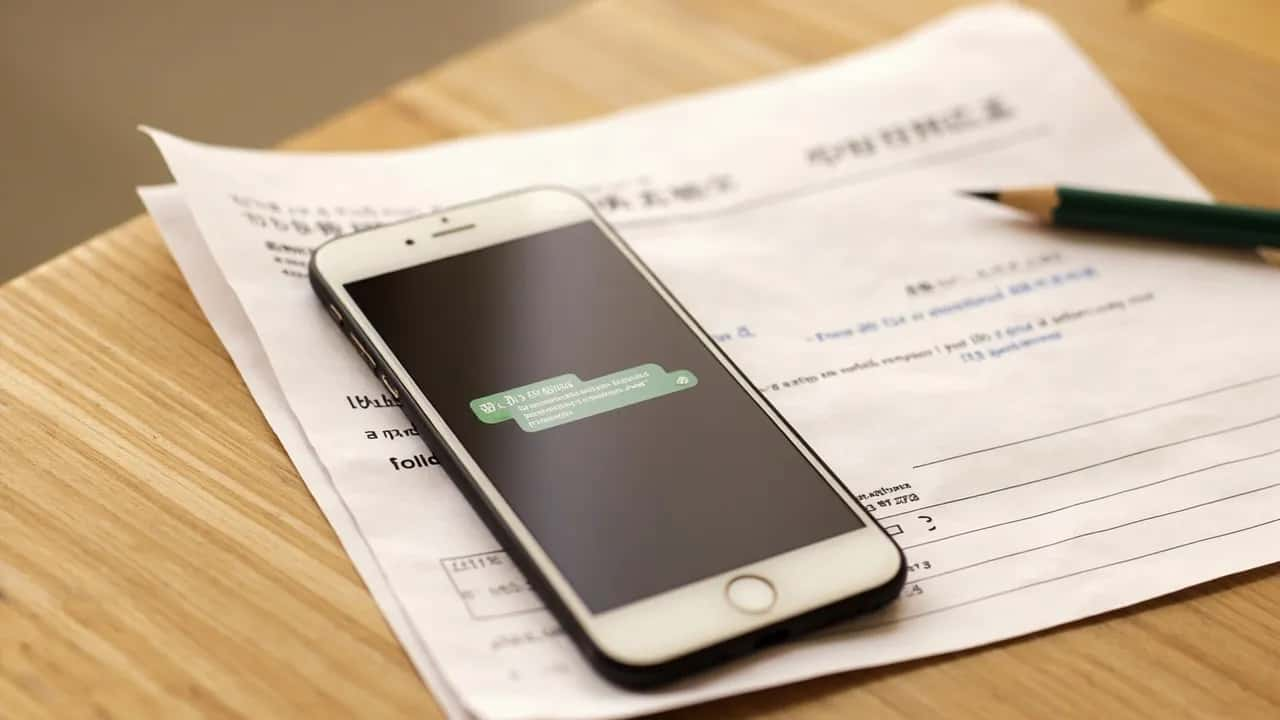
How to Save School Message Dates to Calendar From a Screenshot
How to Save School Message Dates to Calendar From a Screenshot
Copy the date out of a school screenshot with Live Text, decide whether it is an event or a task, and add it to Apple Calendar — or subscribe to the school's published calendar so term dates stay current.
[3] Apple's alert options include "At time of event" and "5 minutes before," and an earlier alert is often what separates knowing about pickup from actually being there.
[1] Downloading and the notice-to-action workflow are free, with 10 free AI notice parses in total after you sign in; Note2Do Pro is US$4.99 per month or US$39.99 per year on the US App Store.

The class parent sends a screenshot at 9 p.m., and somewhere between the emojis sits a date your family now has to honor.
To save school message dates to your calendar, copy the text out of the image, decide whether each date is an event or a task, add it to Apple Calendar with an alert, and subscribe to the school's published calendar when one exists.
If the screenshots arrive faster than you can retype them, Note2Do[1] is one practical shortcut: sign in,
share the notice straight from Messages or Photos, let the app read the date, time, place, fee,
and any sign-pay-bring action off the image, and check everything on one card.
Nothing reaches Apple Calendar until you have reviewed the details and confirmed, so a misread digit never quietly moves your Saturday.[1]
Three routes cover most notices:
| Route | Best for | Keep in mind |
|---|---|---|
| Live Text copy | One clear date in an image | You type the event yourself |
| Share Sheet into a parsing app | Notices with a date plus a fee, a slip, or a packing list | You review the card before anything is created |
| Subscribing to the school calendar | Whole terms and schedules that shift | Needs the school to publish a calendar link |
1. Pull the Text Out of the Screenshot
Open the screenshot in Photos, and let Live Text do the reading.
Touch and hold the words until they highlight, drag the grab points so only the date and time stay selected, then tap Copy Text and paste it into whatever holds your family schedule.[2] Live Text also works in Camera, Safari, and Quick Look, so a paper notice held up to the camera gives up its text the same way — Apple notes the feature is not available in every region or language, which is the usual reason nothing gets selected.[2]
When one notice carries several details at once — a date, a permission slip, a fee, a list of what to bring — copying fragments gets error-prone.
After you sign in, sharing the screenshot into Note2Do keeps the original image on the device, runs text recognition there,
and sends only the extracted text, the child's name you pick, and your locale for parsing,
so the whole notice lands on a single card for you to check.[1] The deliberate handling suits the material:
in the United States, federal student-privacy rules let schools release designated directory information without consent,
and they must honor an opt-out requested within the school's stated window while the student is still enrolled.[6]
2. Is Each Date an Event or a Task?
Sorting before saving keeps the calendar meaningful.
An event belongs on the calendar when your child has to be somewhere at a specific time: the trip, the concert, the early pickup.
A deadline — return the slip, pay for the trip, bring the library books — works better as a reminder task, because there is no start time to block off.
Example:
one class message packs three dates into a single screenshot: a museum trip on a Friday, the permission slip due the day before, and the payment window closing at the end of the month.
Saved correctly, that is one calendar event for the trip itself plus two reminders that fire ahead of their deadlines.
The calendar then shows only where your child physically needs to be, while the to-do dates live where you actually tick things off.
3. Create the Event and Set the Alert
In the Calendar app, start a new event and give it a title your future self will recognize —
child's name first helps when siblings share one calendar.
Enter the start and end times, add travel time if getting there is its own project, and invite your partner so the event lands on both phones.[3] Apple's alert options include "At time of event" and "5 minutes before," and an earlier alert is often what separates knowing about pickup from actually being there.[3]
Two iPhone behaviors do some of this for you.
Siri can suggest events it finds in Mail, Messages, and Safari; open Calendar's settings, tap Siri, and turn on Show in App to see them.[3] On iPhones with Apple Intelligence, Apple's guide also describes typing a plain-language description of an event and letting Calendar draft the details.[3]
4. Subscribe to the School's Own Calendar
Many schools publish a term calendar or sports schedule online, and Microsoft's support guide notes that websites for theaters, sports teams,
and schools often have an "Add to calendar" link that downloads an iCal file.[4] If your family calendar lives in Outlook,
the distinction matters:
importing that file gives you a snapshot that will not refresh even when the school changes the schedule,
while subscribing keeps the connection to the source,
with updates arriving roughly every 3 hours though they can take more than 24 hours.[4] So for anything the school tends to move —
term dates, parent-teacher evenings, fixtures — subscribe rather than import,
and keep the screenshot route as your backup when no calendar link exists.
Fixes for Screenshots That Won't Cooperate
- Nothing selects when you press the text. Live Text is not available in all regions or languages; retype the date by hand or share the image into an app with its own text recognition.[2]
- The date is vague. "Next Friday," "the 12th," or a missing month is a guess waiting to go wrong.
- Confirm with the sender before saving:
Hi [name] — quick check on the notice you sent: is the trip on [day and date], with pickup back at [time]? I want the calendar entry and reminders to be exact. Thanks!
- The event shows up twice. Two parents imported the same notice.
- Agree that one person owns each kind of notice, or move both phones onto a shared family calendar where duplicates are easy to spot and delete.
- The school changed the date after you saved it. A hand-copied event never updates itself, and an imported file stays frozen too; subscribe to the school's calendar where one exists, and re-read the notice thread the night before anything with a deadline.[4]
Key Takeaways
- Live Text lifts a date out of a screenshot in Photos, Camera, Safari, or Quick Look, wherever the feature is supported.[2]
- Sort before saving: events for places and start times, tasks for slips, payments, and things to bring.
- The alert is what makes an entry useful — "5 minutes before," plus travel time for a school run.[3]
- When the school publishes a calendar, subscribe instead of importing: imports are frozen snapshots that ignore later changes.[4]
- Sharing the notice into a parsing app and confirming a reviewed card is the fast route when one screenshot holds several details at once.[1]
Frequently Asked Questions
How do I copy text from a screenshot on my iPhone?
Use Live Text: open the screenshot in Photos, touch and hold the text, adjust the grab points around the date, and tap Copy Text to paste it into Calendar or Notes.[2] The same trick works in Camera, Safari, and Quick Look, though Apple notes it is not available in every region or language — if nothing is selected, retype the date manually.
Can Calendar pick up dates from Messages by itself?
Siri can suggest events it finds in Mail, Messages, and Safari, and you enable that by opening Calendar's settings, tapping Siri, and turning on Show in App.[3] Suggestions still need your confirmation before anything is added, so compare the proposed event against the original message — times inside a long chat screenshot are easy for a suggestion to mangle.
Is there an app that turns a school screenshot into a calendar event?
Note2Do[1] does this on iPhone running iOS 17 or later: sign in, share the screenshot from Messages or Photos,
check the extracted date, time, fee, and action on one card,
and confirm to create an Apple Calendar event or a Reminders task.[1] Downloading and the notice-to-action workflow are free,
with 10 free AI notice parses in total after you sign in;
Note2Do Pro is US$4.99 per month or US$39.99 per year on the US App Store.[1][5]
What is the difference between importing and subscribing to a school calendar?
Importing an.ics file copies a snapshot of the events as they were at the moment of import, and the copy will not refresh when the school makes changes.[4] Subscribing connects your calendar to the source so updates flow through — in Outlook, roughly every 3 hours, though it can take more than 24 hours.[4] Subscribe to changing schedules; import only static, one-off lists.
Note2Do
iPhone · iOS 17+
References
[1] Note2Do product page https://taoapex.com/en/products/note2do/
[2] Apple iPhone guide: copy text with Live Text https://support.apple.com/guide/iphone/interact-with-content-in-a-photo-or-video-iph37fdd714b/ios
[3] Apple iPhone guide: create and edit events in Calendar https://support.apple.com/guide/iphone/create-and-edit-events-in-calendar-iph3d110f84/ios
[4] Microsoft Support: import or subscribe to a calendar in Outlook https://support.microsoft.com/en-us/outlook/import-or-subscribe-to-a-calendar-in-outlook-com-or-outlook-on-the-web
[5] Note2Do on the App Store https://apps.apple.com/app/id6799645909
[6] U.S. Department of Education (FERPA): directory information without prior consent https://studentprivacy.ed.gov/faq/may-educational-agency-or-institution-disclose-directory-information-without-prior-consent